From first enquiry to money in the bank.
One job, start to finish, in a brand-new SiteView account. Every screen below is the actual app, captured as we went. The company — Ridgeline Builders — and its customer, Mara Whitfield, are invented, and so is every address and dollar figure in the shots.
The enquiry lands in Messages
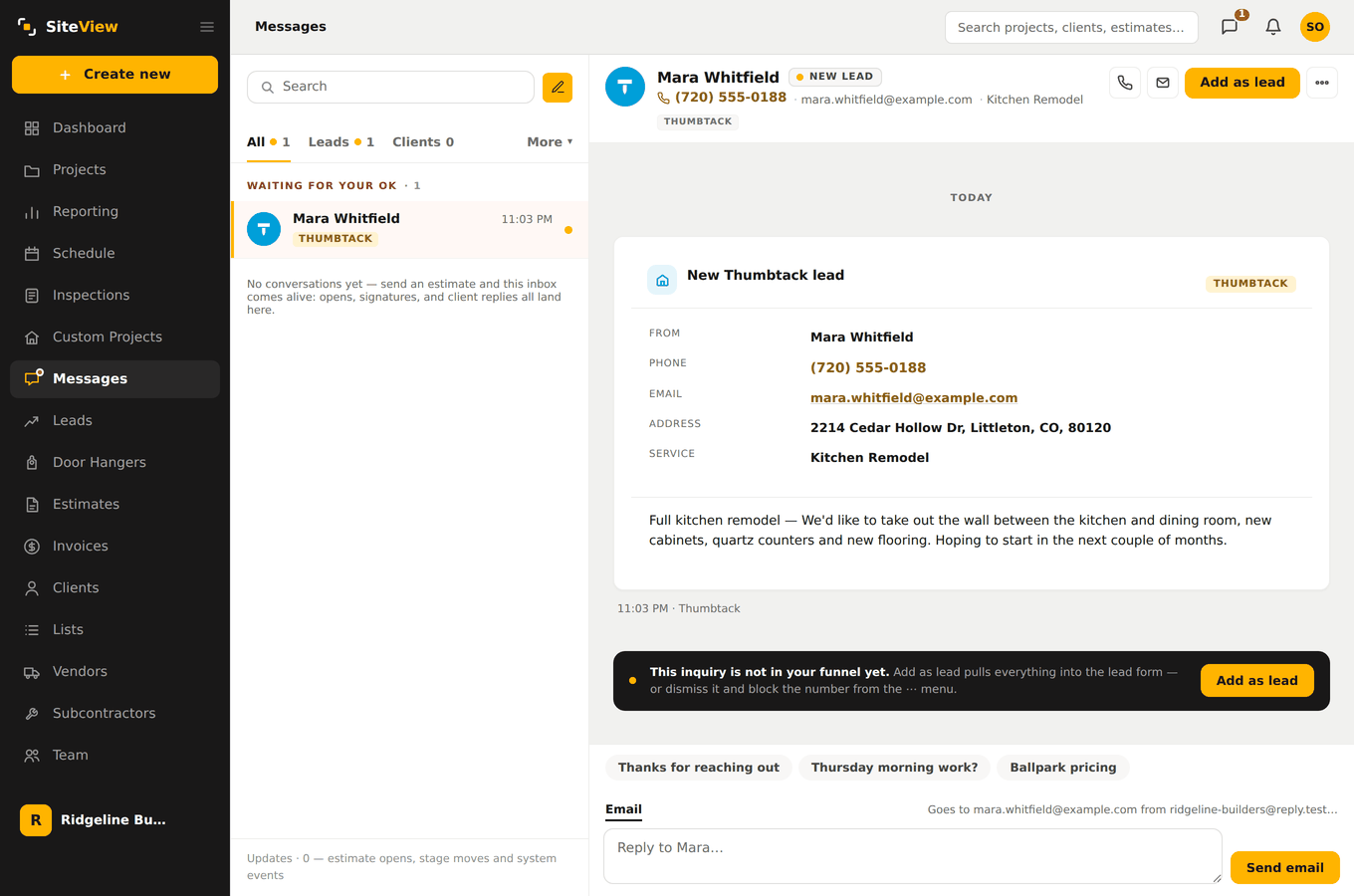
Whatever the source — Thumbtack, Angi, your website form, a plain email — it arrives in one inbox with the source already on it. Nothing to copy anywhere. You can reply from here and it goes out from your address, and the quick replies underneath save you typing the same three things every day.
Add them as a lead
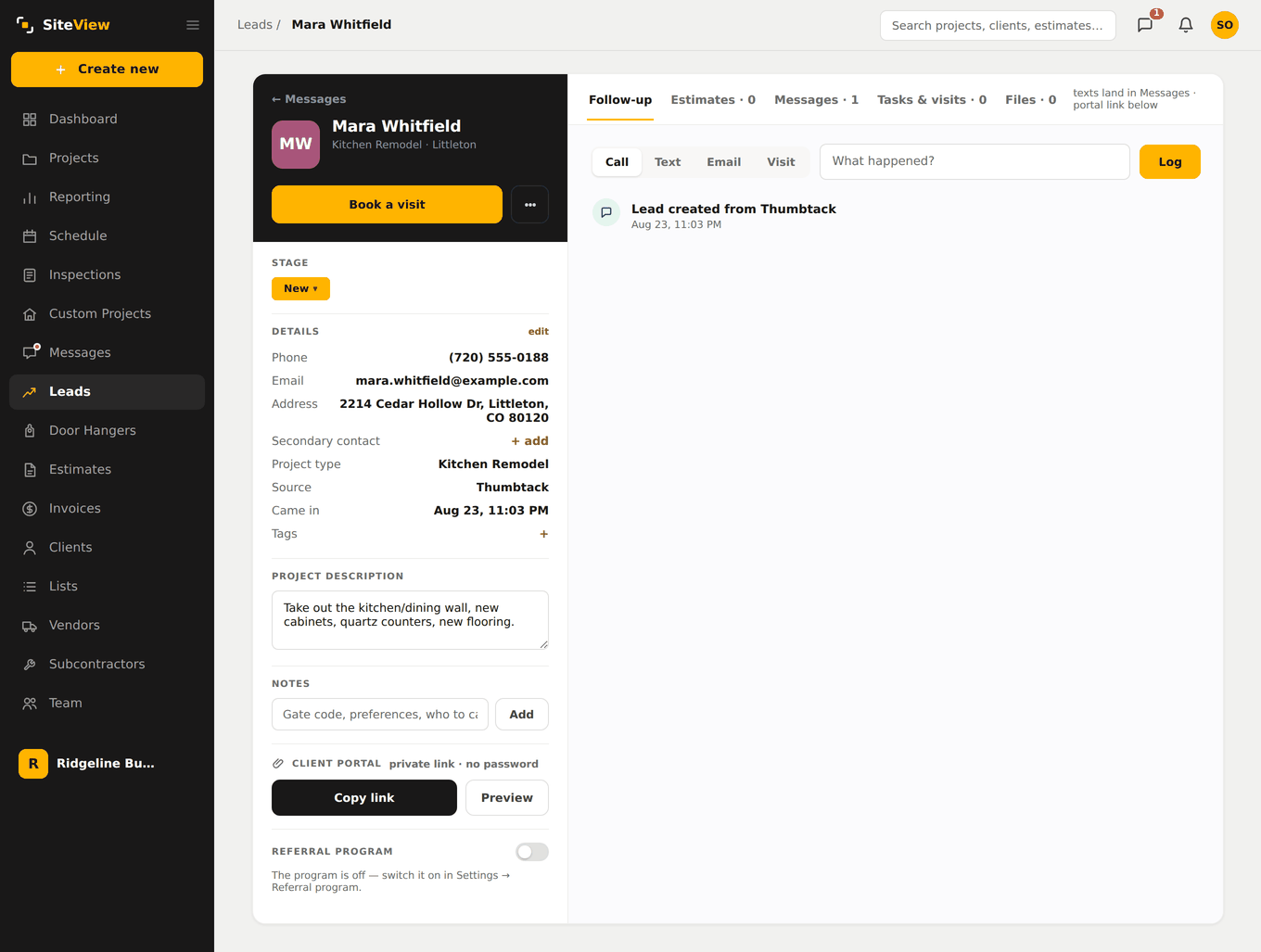
Add as lead pulls everything across — name, phone, email, address, what they asked for — into a lead record. Until you do that, an enquiry is just an enquiry: it is not in your funnel and it is not in your numbers. That is deliberate, so a stray message never becomes a fake lead.
Build the estimate
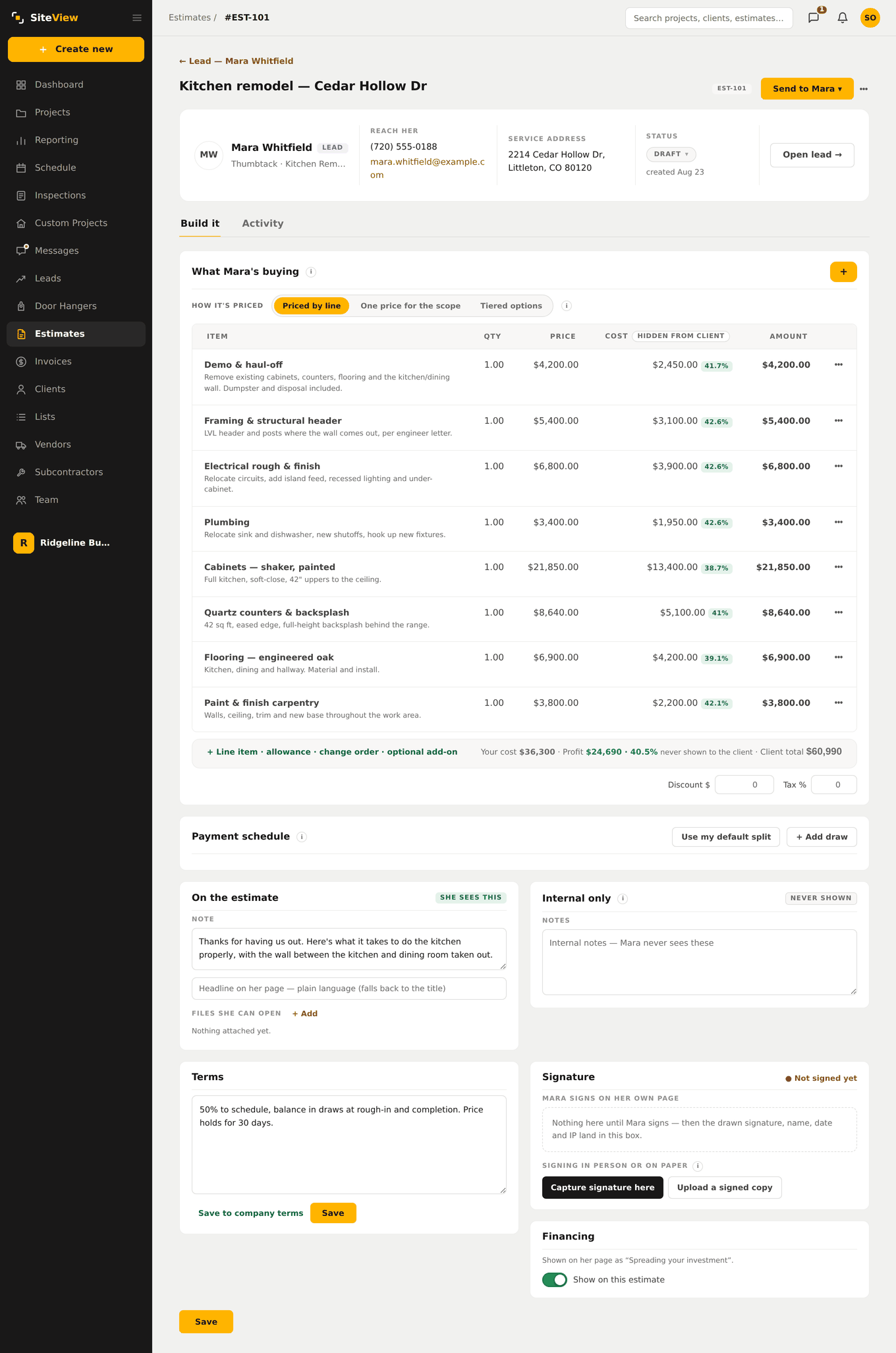
Add your line items with a price and your cost against each. Describe the work in the line — homeowners read these, and a line that explains itself closes better than a number on its own. Your markup and PM fee are applied from your own settings, and only the people you allow ever see the cost column.
Send it — and see what they see
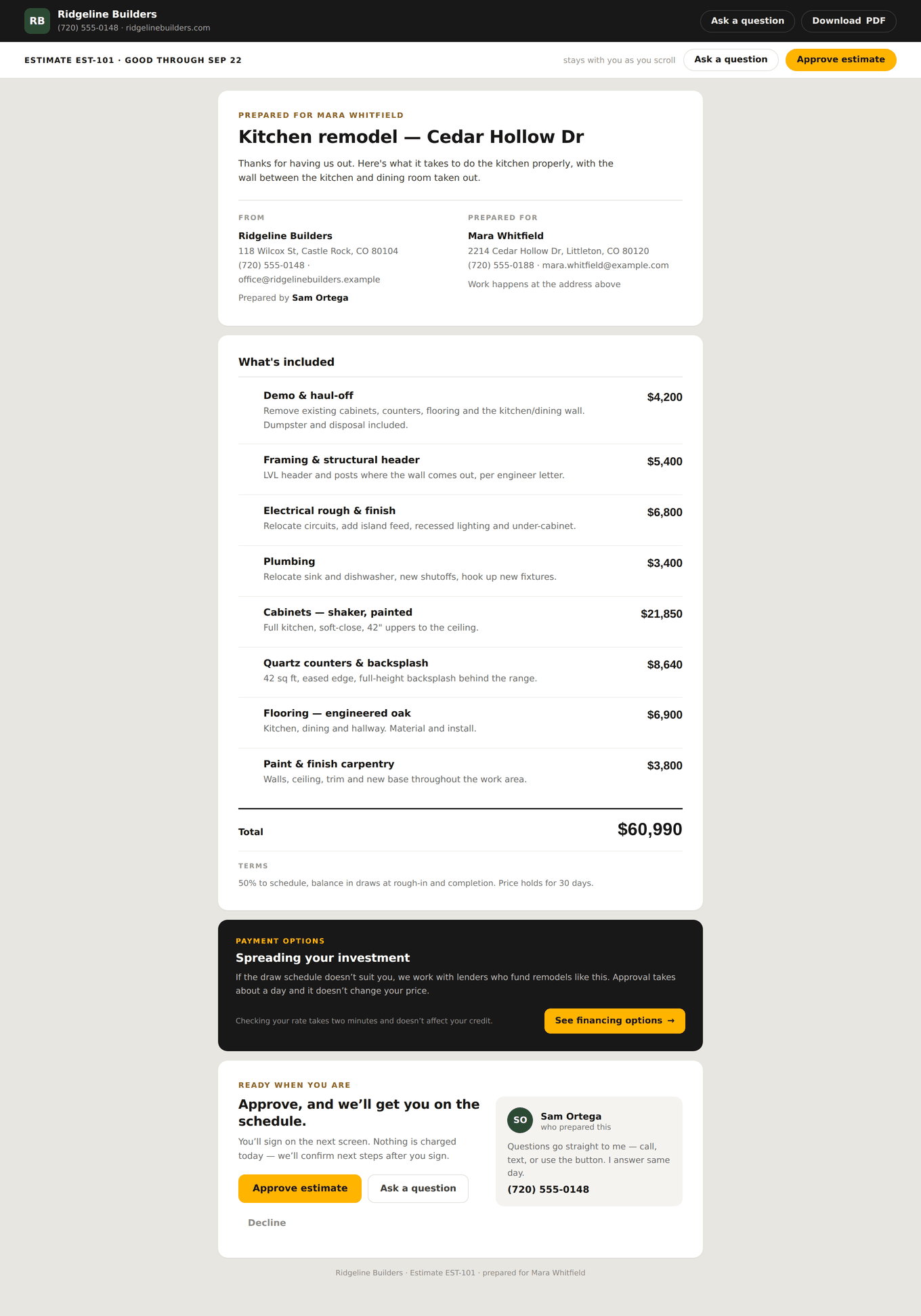
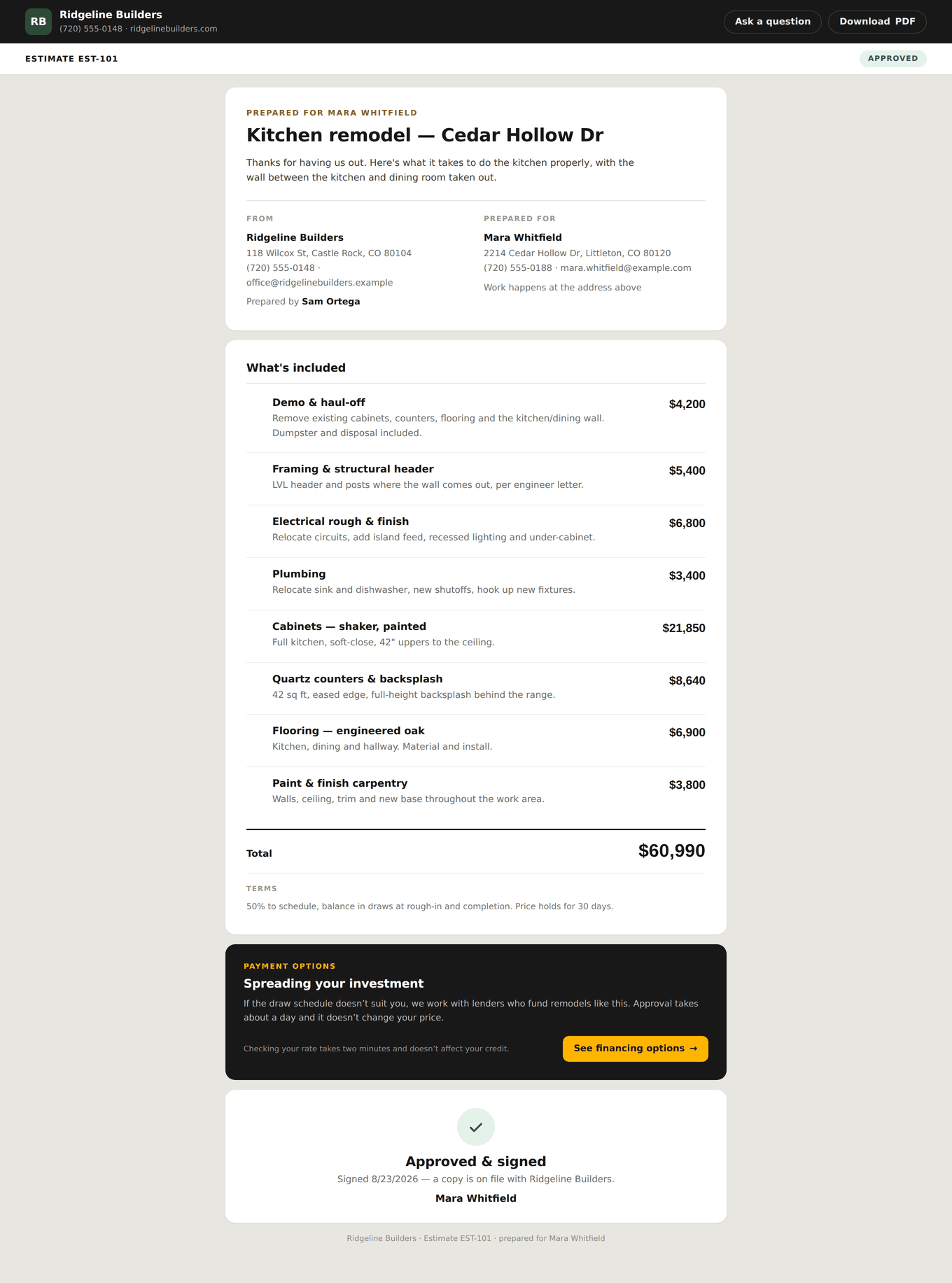
Sending mints a private link. The homeowner opens it on their phone: your company at the top, the scope written out, the total, your terms, and one clear button. No PDF to download, no app to install, nothing to print.
They approve and sign
They type their name and sign, right there. The document locks with their name, the signature and a timestamp on it, and your inbox tells you it happened.
Turn it into an invoice, and open the job
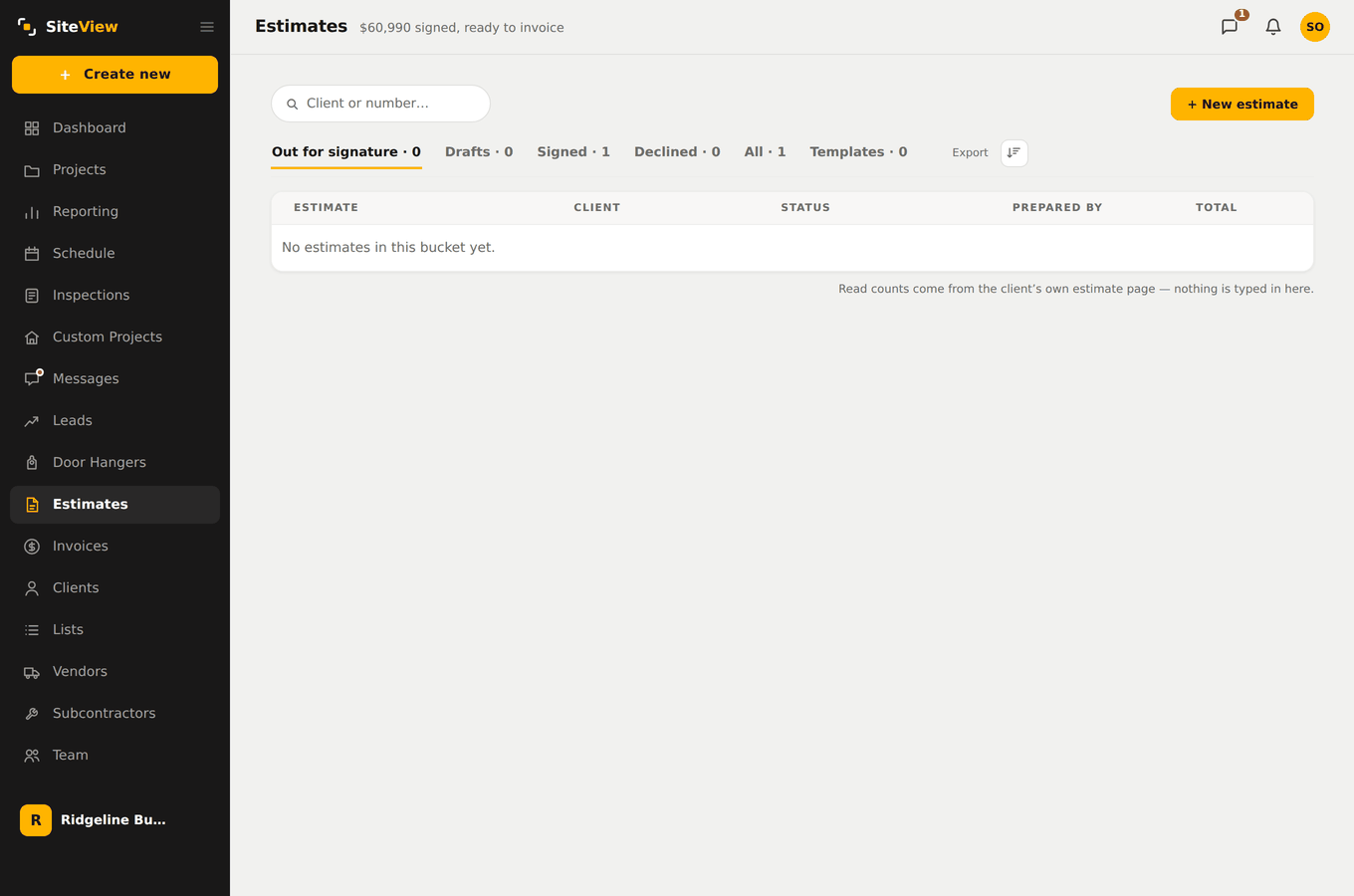
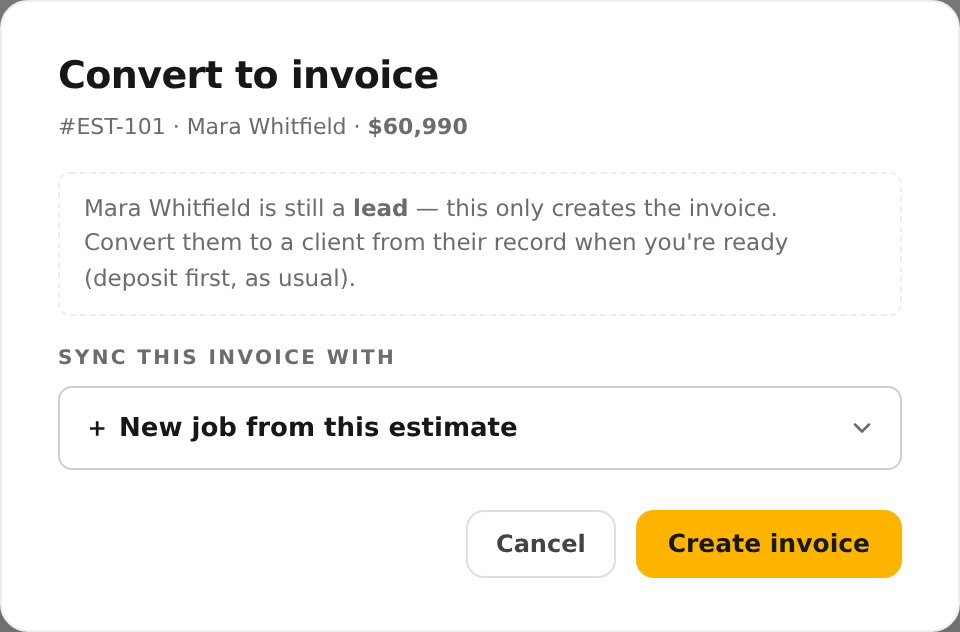
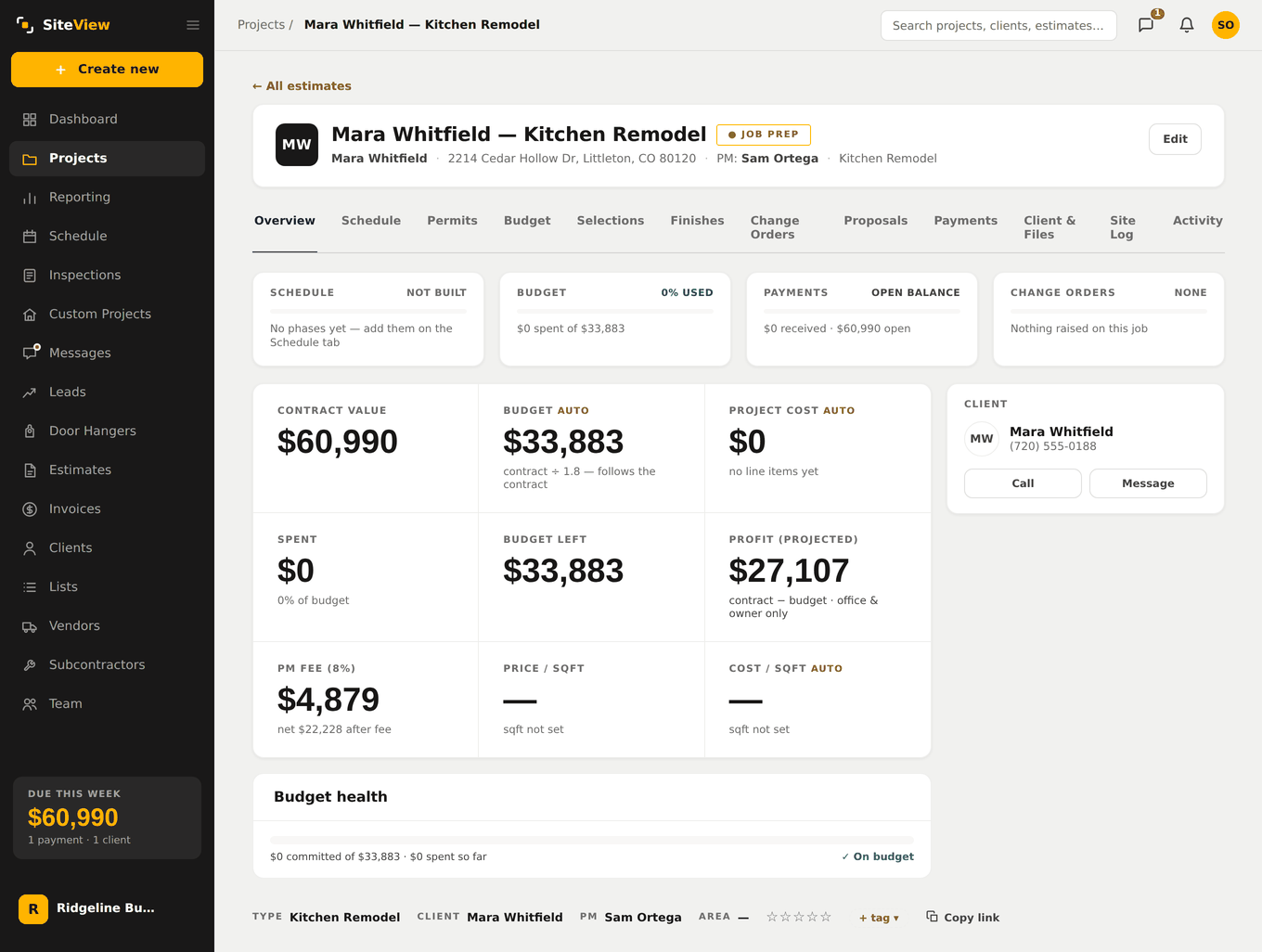
On a signed estimate, Convert to invoice asks one question: which job does this belong to? Pick New job from this estimate and SiteView opens the job, sets the contract value to the estimate total, and creates the invoice line already linked to it. Existing client with more work? Point it at their current job instead.
Record the payment
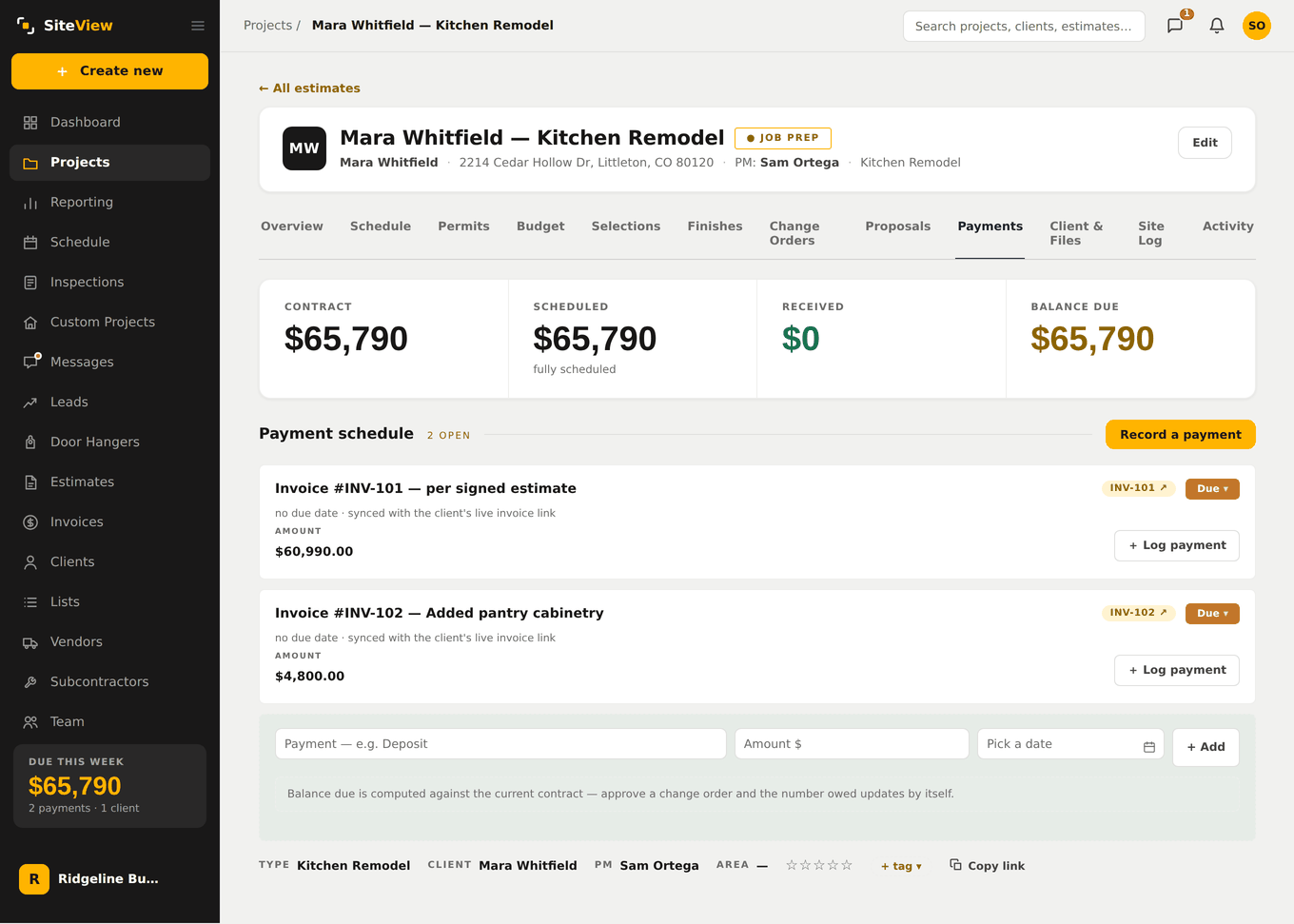
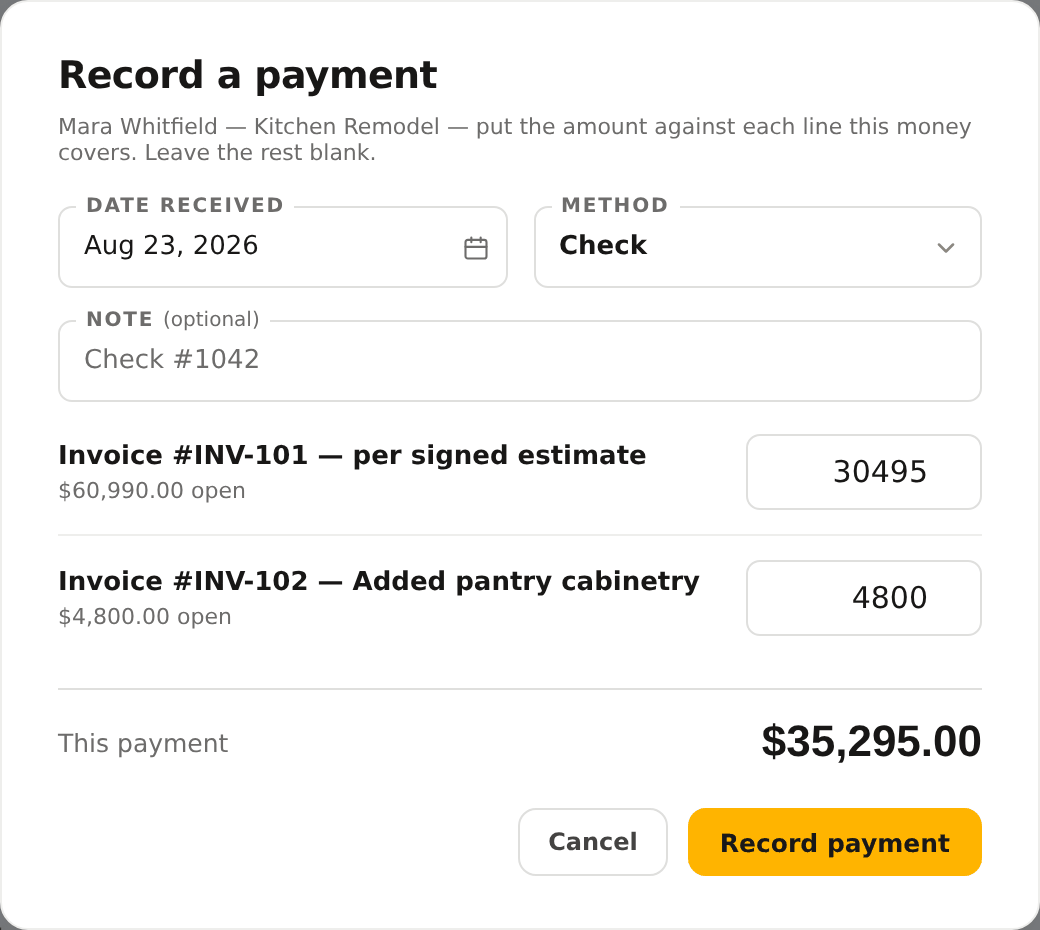
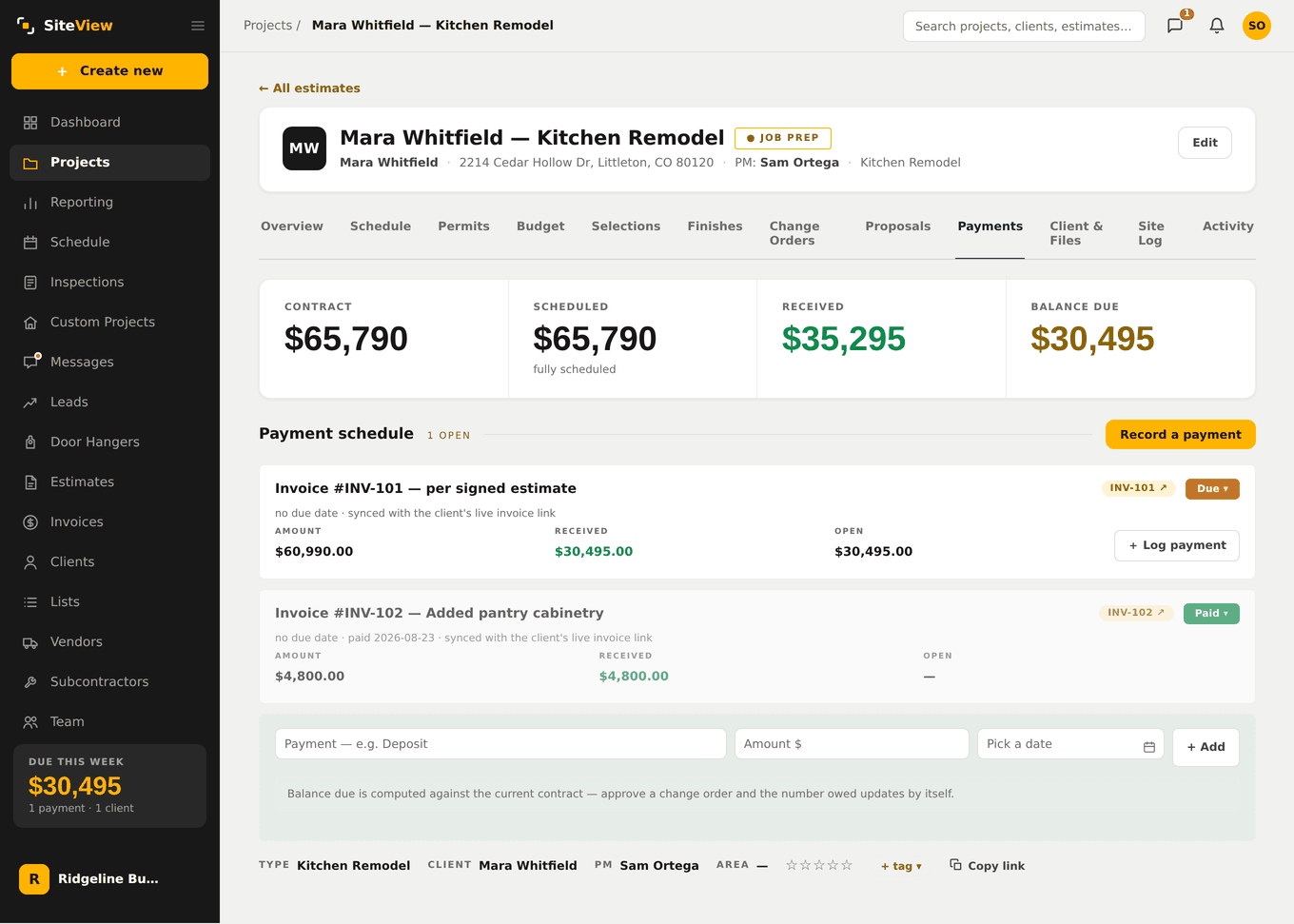
The job’s Payments tab holds the money side: the contract, what is scheduled, what has come in, and what is still owed. When a cheque arrives, hit Record a payment and put the amount against each line it covers. One cheque can cover two invoices — type the split and it lands in both. Nothing is filled in for you on purpose: guessing at your money and being wrong is worse than asking.
It shows up everywhere it should
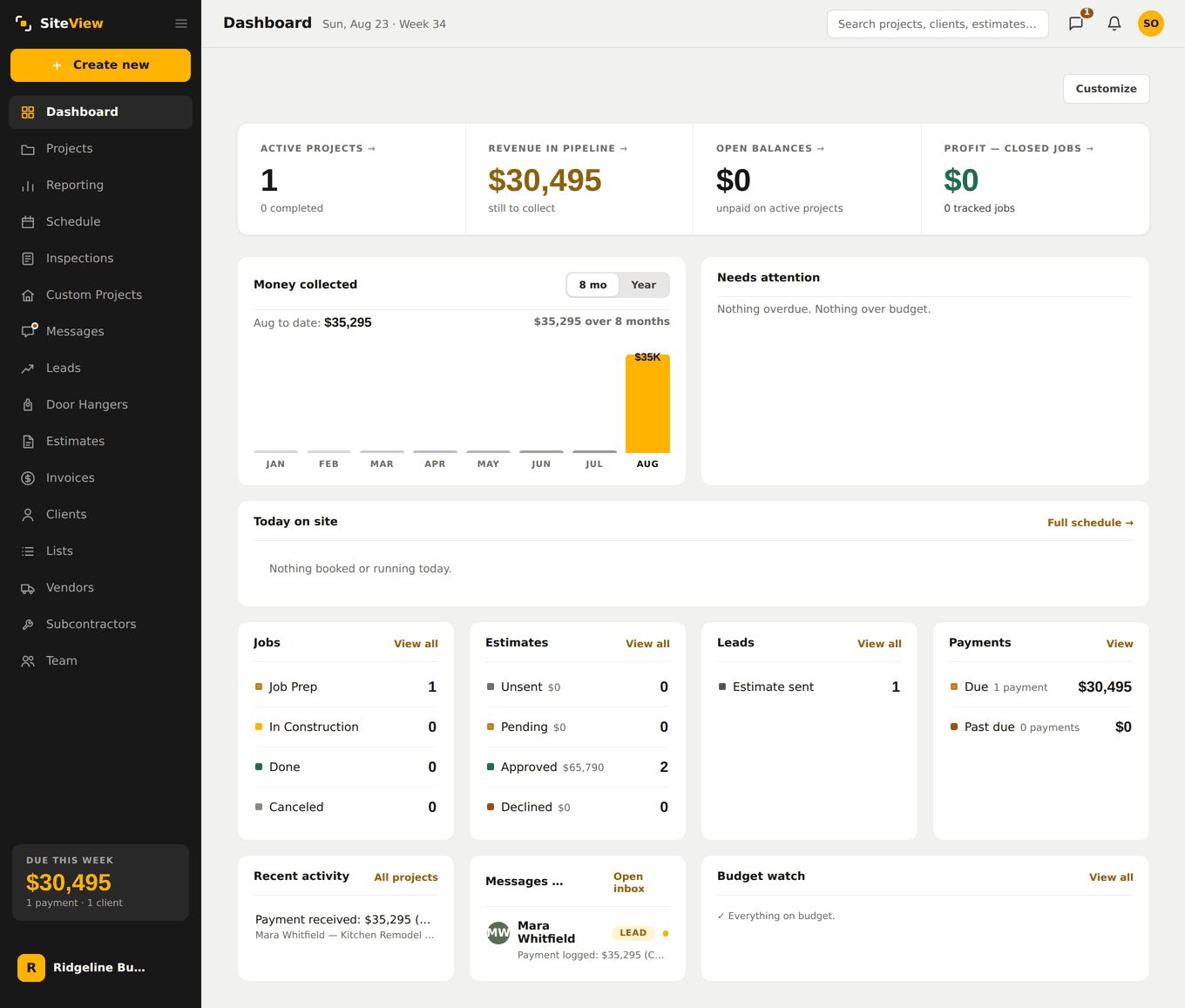
That is the whole point of keeping one record from first call to final cheque. The money reports in the month it arrived. The balance still owed is right. The client’s thread carries the payment. And the lead that started it now has a real number attached to it.
Now do it with one of your own jobs.
Reading it only gets you so far. Put a real estimate through and you'll know in an afternoon whether this fits how you work.
30 days free. No card. We set your company up with you.